XML Formatter: Membuat Kode XML Anda Bersih, Sederhana, dan Siap Debug
Anda mewarisi API SOAP lawas, dan responsnya berupa dinding XML 50KB tanpa format. Anda harus menemukan satu node tertentu yang terkubur di dalamnya, tetapi tanpa indentasi, semua elemen menyatu menjadi berantakan yang tidak bisa dibaca. Terdengar familiar?
Per Mei 2026, XML formatter profesional menerapkan indentasi yang konsisten (2 atau 4 spasi) dan syntax highlight untuk mengubah string yang diminyaki menjadi struktur yang bisa dibaca dan di-debug. Alat-alat ini memungkinkan Anda memvalidasi API SOAP dan sitemap secara aman melalui pemrosesan di sisi klien langsung di browser Anda.
Bagaimana XML Formatter Sebenarnya Bekerja
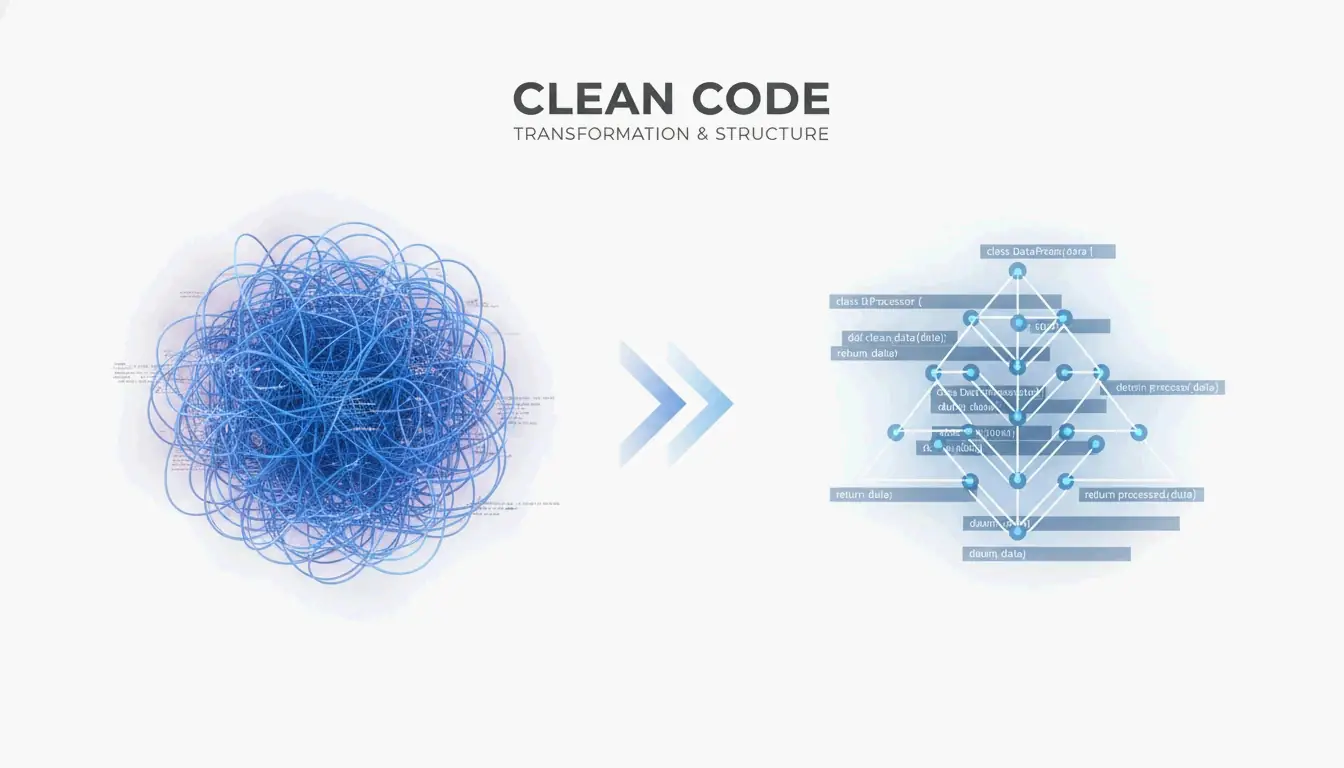
XML formatter mengambil teks mentah yang berantakan dan menyusunnya kembali menjadi hierarki visual yang jelas. Menurut EaseCloud, alat ini mengubah XML yang “diminyaki” atau satu baris menjadi dokumen profesional dengan menambahkan jeda baris dan spasi yang logis.
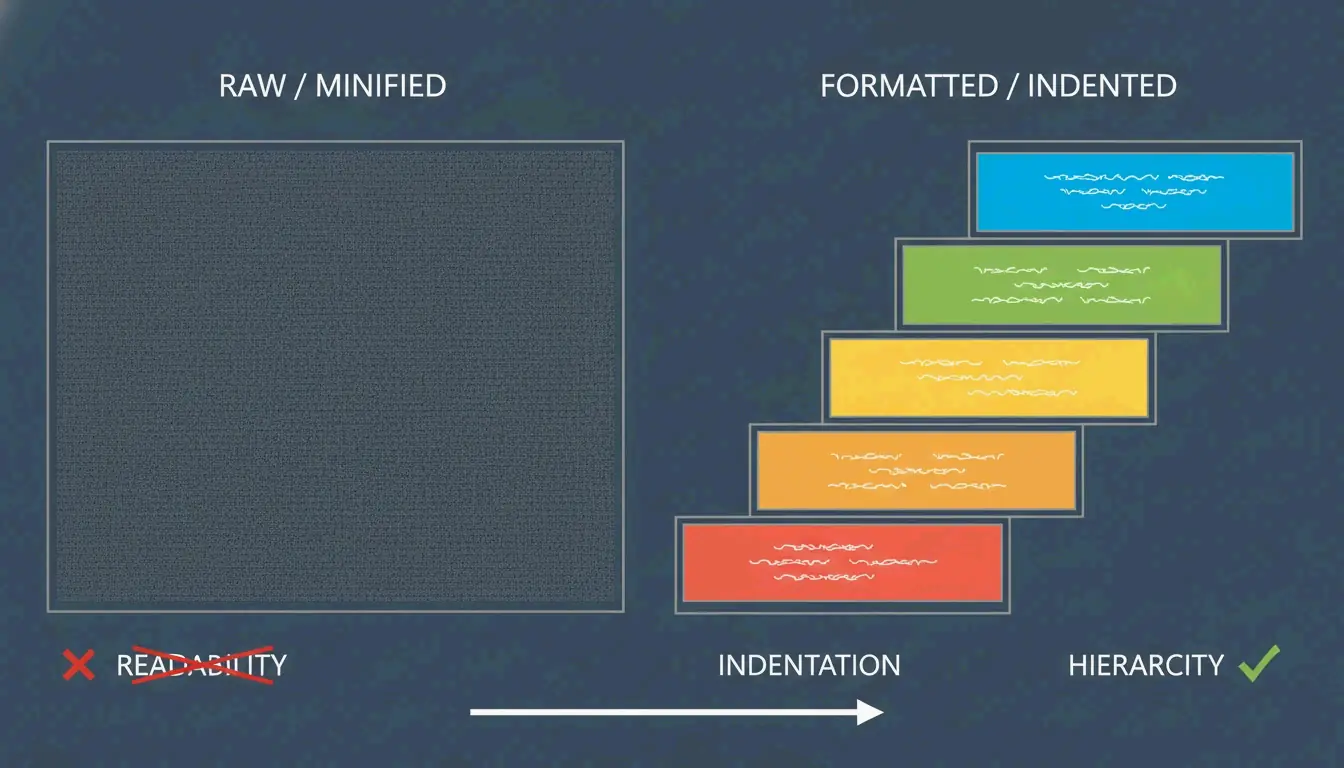
Mekanisme intinya adalah indentasi. Anda memilih antara 2 spasi, 4 spasi, atau tab untuk menunjukkan bagaimana elemen saling berhubungan. Elemen root tetap di margin kiri, sementara elemen anak yang bersarang bergeser ke kanan. Hasilnya adalah pohon visual yang membuat struktur data langsung jelas.
Syntax highlight menambahkan tag, atribut, dan nilai dengan kode warna sehingga Anda bisa menemukan pola atau kesalahan tanpa membaca setiap karakter.
Sebelum vs. Sesudah: Apa yang Sebenarnya Dilakukan Formatting
Sebelum (XML yang diminyaki):
<?xml version="1.0"?><catalog><book id="bk101"><author>Gambardella, Matthew</author><title>XML Developer's Guide</title><price>44.95</price></book><book id="bk102"><author>Ralls, Kim</author><title>Midnight Rain</title><price>5.95</price></book></catalog>
Sesudah (diformat dengan indentasi 2 spasi):
<?xml version="1.0"?>
<catalog>
  <book id="bk101">
    <author>Gambardella, Matthew</author>
    <title>XML Developer's Guide</title>
    <price>44.95</price>
  </book>
  <book id="bk102">
    <author>Ralls, Kim</author>
    <title>Midnight Rain</title>
    <price>5.95</price>
  </book>
</catalog>
Data yang sama. Pengalaman debugging yang sepenuhnya berbeda.
Mengapa XML yang Diminyaki Menjadi Bottleneck Developer
XML yang diminyaki menghapus semua whitespace dan jeda baris untuk menjaga ukuran file tetap kecil agar transmisi cepat. Bagus untuk server, buruk untuk manusia. Menemukan node tertentu dalam string satu baris berukuran 100KB hampir mustahil tanpa formatting. Formatter memulihkan tata letak yang dapat dibaca manusia yang Anda butuhkan untuk debugging dan tinjauan kode.
Memecahkan XML yang Rusak: Lebih dari Sekadar Formatting
XML jauh lebih ketat daripada HTML. Seperti dijelaskan oleh Tim Editorial AllOverTools, browser mungkin memperbaiki HTML yang berantaka secara otomatis, tetapi satu kesalahan sintaks dalam XML menyebabkan kegagalan total.
Formatter modern menggunakan logika DOMParser untuk menentukan dengan tepat di mana kode melanggar standar W3C. Berikut adalah tiga pelaku paling umum:
Pelaku 1: Karakter Khusus yang Tidak Di-escape
Ampersand (&) harus ditulis sebagai & atau dibungkus dalam blok CDATA. Karakter lain yang perlu di-escape: < menjadi <, > menjadi >, " menjadi ".
<!-- BROKEN -->
<product>AT&T Wireless Plan</product>
<!-- FIXED -->
<product>AT&T Wireless Plan</product>
<!-- OR: use CDATA for blocks of special characters -->
<description><![CDATA[Plans start at $29.99/mo. Terms & conditions apply.]]></description>
Pelaku 2: Ketidakcocokan Case-Sensitivity
XML bersifat case-sensitive. Tag penutup harus persis sama dengan tag pembukanya.
<!-- BROKEN -->
<Item>Widget</item>

<!-- FIXED -->
<Item>Widget</Item>
Pelaku 3: Hierarki yang Rusak
Tag penutup yang hilang atau atribut yang tidak dikutip mencegah parser membangun pohon.
<!-- BROKEN: missing closing tag, unquoted attribute -->
<book id=101><title>XML Guide</book>

<!-- FIXED -->
<book id="101"><title>XML Guide</title></book>
Pemrosesan di Sisi Klien: Menjaga Data Anda Tetap Aman
Jika Anda bekerja dengan payload SOAP API atau file konfigurasi pribadi, keamanan itu penting. Sebagian besar formatter online yang andal sekarang menggunakan pemrosesan di sisi klien — XML diproses sepenuhnya di dalam memori browser Anda menggunakan JavaScript.
Menurut CodeItBro, hal ini memastikan data Anda tidak pernah dikirim ke server eksternal. Pendekatan lokal ini membantu perusahaan tetap patuh terhadap standar keamanan sambil memberikan kenyamanan alat berbasis web kepada developer.
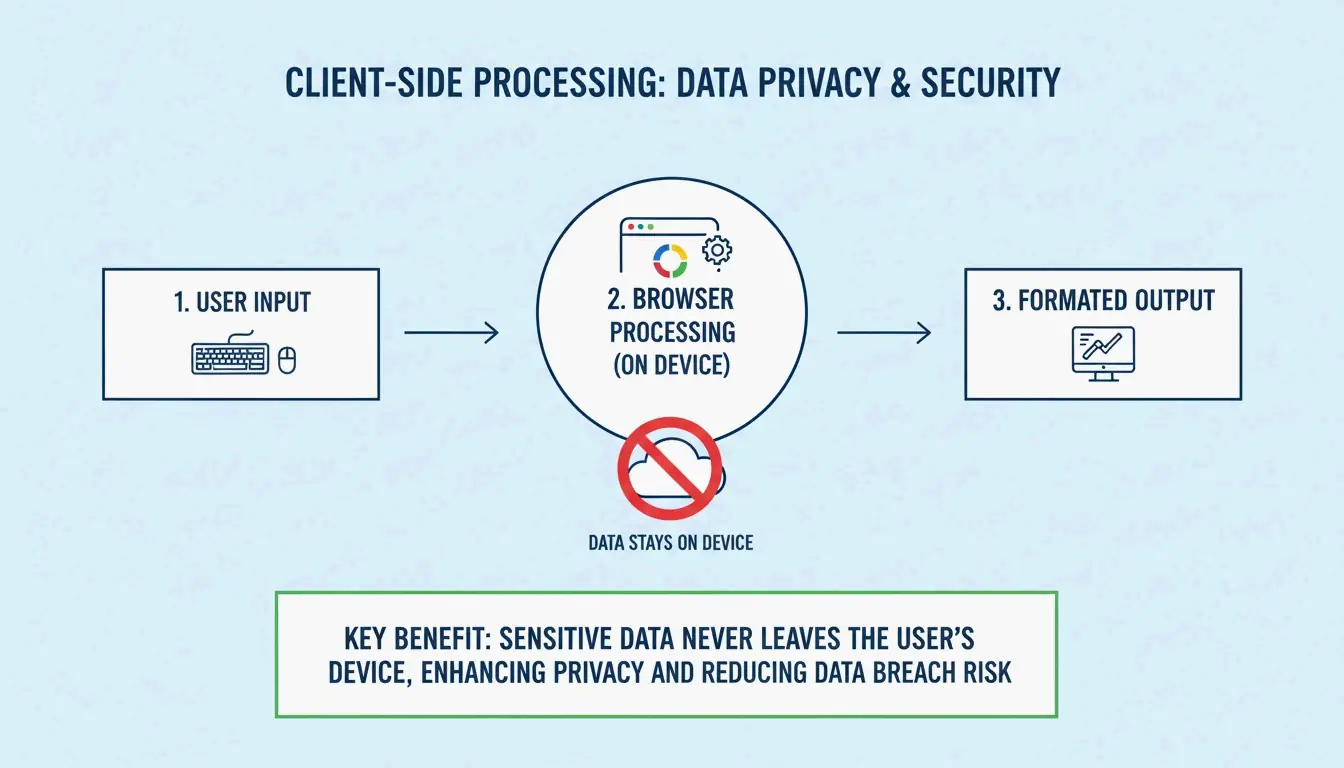
Cara memverifikasi: Buka tab Network browser Anda sebelum menempelkan XML ke formatter. Jika Anda tidak melihat permintaan keluar selama formatting, alat tersebut berjalan di sisi klien. Jika Anda melihat permintaan POST, data Anda sedang meninggalkan mesin Anda.
Use Case di Dunia Nyata
Validasi Sitemap SEO
Mesin pencari seperti Google membutuhkan sitemap yang well-formed untuk mengindeks situs Anda. Formatter membantu webmaster memvalidasi file-file ini sebelum deployment.
<!-- Before formatting: impossible to spot errors -->
<?xml version="1.0"?><urlset xmlns="http://www.sitemaps.org/schemas/sitemap/0.9"><url><loc>https://example.com/</loc><lastmod>2026-05-01</lastmod></url><url><loc>https://example.com/about</loc><lastmod>2026-05-01</lastmod></url></urlset>
Debugging SOAP API
Saat mendebug respons SOAP, “pretty-printing” memungkinkan Anda membaca envelope dan header yang kompleks dengan cepat.
Manajemen Payload Enterprise
AWS mencatat bahwa Amazon SQS memiliki batas 256 KB untuk payload XML. Formatter membantu developer memantau ukuran file sambil menjaga data tetap terorganisir.
Integrasi IDE
Untuk pekerjaan berat, alat seperti IntelliJ IDEA (per April 2026) menawarkan pengaturan “Chop down” atau “Wrap if long” tingkat lanjut yang menjaga tag berdata besar tetap terbaca dalam batas editor Anda.
Referensi Cepat: Cheat Sheet Formatting XML
| Tugas | Alat/Metode | Perintah atau Tindakan |
|---|---|---|
| Pretty-print di browser | Formatter online | Tempel XML, pilih indentasi 2 atau 4 spasi |
| Formatting CLI | xmllint |
xmllint --format input.xml > output.xml |
| Python | lxml atau xml.dom.minidom |
xml.dom.minidom.parseString(xml).toprettyxml() |
| Node.js | paket npm xml-formatter |
npx xml-formatter input.xml |
| IDE | IntelliJ / VS Code | Aksi bawaan “Reformat Code” |
Kesimpulan
XML formatter yang andal adalah cara tercepat untuk mengubah data yang tidak terbaca dan terkompresi menjadi format yang bersih dan dapat di-debug yang mengikuti standar W3C. Baik Anda sedang mengaudit sitemap SEO atau memecahkan masalah SOAP API enterprise, melihat struktur bersarang melalui indentasi yang tepat sangat penting untuk pekerjaan pengembangan modern.
Pilih formatter dengan indentasi 2 atau 4 spasi dan jaminan privasi sisi klien untuk menjaga log API dan kredensial Anda tetap aman. Untuk pengalaman developer terbaik, gabungkan formatting cepat berbasis browser dengan alat CLI untuk otomatisasi.
FAQ
Mengapa XML saya tidak terformat dengan benar?
Alasan paling umum adalah XML tersebut tidak “well-formed.” Periksa tag penutup yang hilang, ketidakcocokan case-sensitivity (misalnya, <Data> vs </data>), atau atribut yang tidak dikutip. Pastikan juga karakter khusus seperti & di-escape dengan benar, karena pelanggaran ini mencegah parser membangun struktur pohon.
Apa perbedaan antara XML yang well-formed dan valid?
XML yang “well-formed” mengikuti aturan sintaks umum: elemen root tunggal, tag yang bersarang dengan benar, atribut yang dikutip. XML yang “valid” juga tambahan mematuhi skema spesifik (DTD atau XSD) yang mendefinisikan data dan tag yang diizinkan. Sebagian besar formatter berfokus pada well-formedness; validasi memerlukan alat yang sadar skema.
Apakah aman menempelkan data XML sensitif ke formatter online?
Hanya jika alat menggunakan pemrosesan di sisi klien — formatting terjadi di memori browser Anda dan tidak diunggah ke server mana pun. Selalu verifikasi kebijakan privasi alat. Untuk data enterprise berkeamanan tinggi, gunakan IDE lokal atau alat CLI offline yang terverifikasi untuk menghilangkan semua risiko transmisi.
Bisakah saya memformat file XML besar atau gambar SVG?
Ya, sebagian besar formatter modern menangani SVG (yang berbasis XML) dan file hingga beberapa megabyte. Dataset yang sangat besar dapat menyebabkan lag pada browser. Untuk file yang melebihi beberapa megabyte, IDE profesional atau alat CLI seperti xmllint lebih efisien daripada formatter berbasis browser.