
Formateador XML: haz que tu código XML sea limpio, sencillo y listo para depurar
Heredaste una API SOAP heredada y la respuesta es un muro de 50 KB de XML sin formato. Necesitas encontrar un nodo específico enterrado ahí, pero sin sangría, todos los elementos se mezclan en un caos ilegible. ¿Te suena familiar?
A partir de mayo de 2026, un formateador XML profesional aplica una sangría consistente (2 o 4 espacios) y resaltado de sintaxis para transformar cadenas comprimidas en estructuras legibles y depurables. Estas herramientas te permiten validar APIs SOAP y sitemaps de forma segura mediante procesamiento del lado del cliente directamente en tu navegador.
Cómo funciona realmente un formateador XML
Un formateador XML toma texto crudo y desordenado y lo reorganiza en una jerarquía visual clara. Según EaseCloud, estas herramientas convierten XML “comprimido” o de una sola línea en un documento profesional añadiendo saltos de línea y espaciado lógico.
El mecanismo central es la sangría. Eliges entre 2 espacios, 4 espacios o tabuladores para mostrar cómo se relacionan los elementos entre sí. Un elemento raíz permanece en el margen izquierdo, mientras que los elementos secundarios anidados se desplazan hacia la derecha. El resultado es un árbol visual que hace que la estructura de los datos sea inmediatamente evidente.
El resaltado de sintaxis añade etiquetas, atributos y valores codificados por color para que puedas detectar patrones o errores sin leer cada carácter.
Antes vs. Después: lo que realmente hace el formateo
Antes (XML comprimido):
<?xml version="1.0"?><catalog><book id="bk101"><author>Gambardella, Matthew</author><title>XML Developer's Guide</title><price>44.95</price></book><book id="bk102"><author>Ralls, Kim</author><title>Midnight Rain</title><price>5.95</price></book></catalog>
Después (formateado con sangría de 2 espacios):
<?xml version="1.0"?>
<catalog>
  <book id="bk101">
    <author>Gambardella, Matthew</author>
    <title>XML Developer's Guide</title>
    <price>44.95</price>
  </book>
  <book id="bk102">
    <author>Ralls, Kim</author>
    <title>Midnight Rain</title>
    <price>5.95</price>
  </book>
</catalog>
Los mismos datos. Una experiencia de depuración completamente diferente.
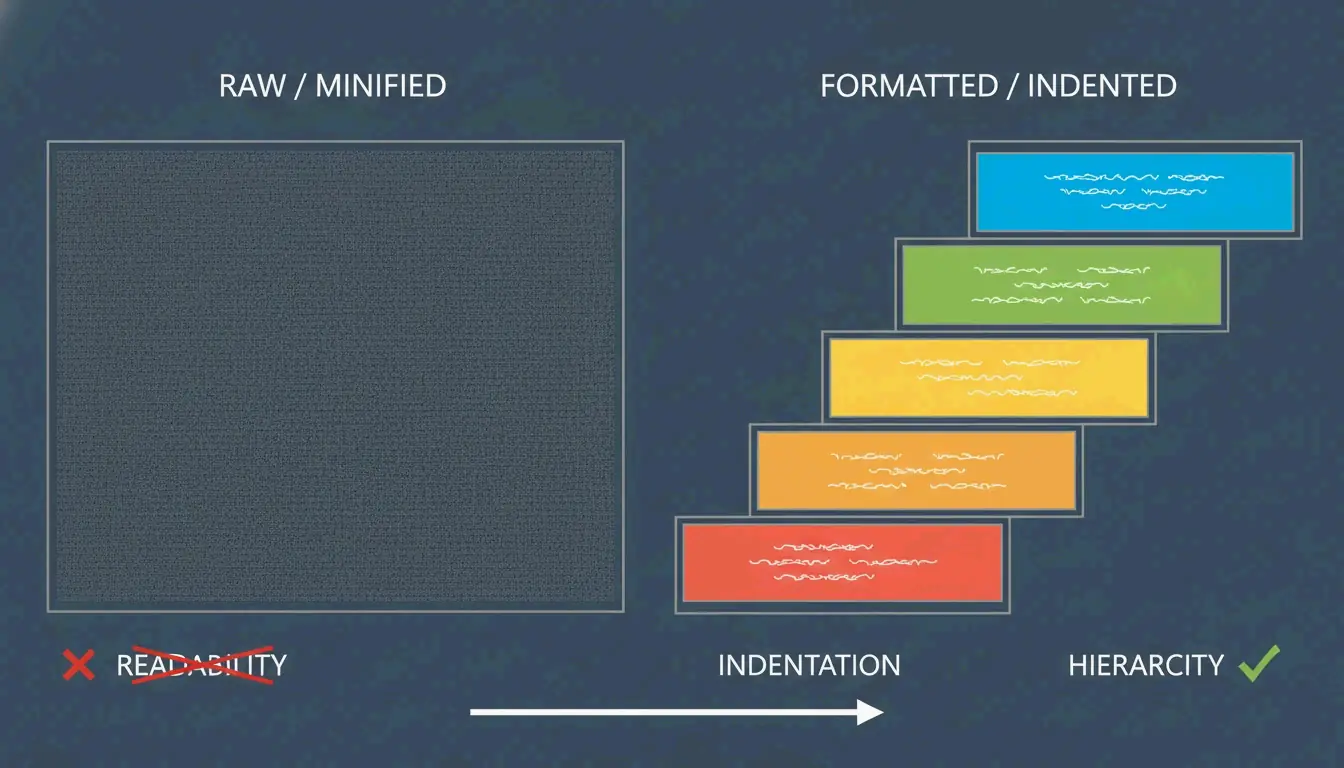
Por qué el XML comprimido es un cuello de botella para los desarrolladores
El XML comprimido elimina todos los espacios en blanco y saltos de línea para mantener los tamaños de archivo pequeños y la transmisión rápida. Genial para los servidores, terrible para los humanos. Encontrar un nodo específico en una cadena de una sola línea de 100 KB es casi imposible sin formatear. Un formateador restaura el diseño legible para humanos que necesitas para la depuración y las revisiones de código.
Solución de problemas de XML roto: más allá del formateo
XML es mucho más estricto que HTML. Como explica el equipo editorial de AllOverTools, los navegadores pueden reparar automáticamente HTML desordenado, pero un solo error de sintaxis en XML provoca un fallo total.
Los formateadores modernos usan la lógica DOMParser para localizar exactamente dónde el código infringe los estándares W3C. Aquí están los tres culpables más comunes:
Culpable 1: caracteres especiales sin escapar
El ampersand (&) debe escribirse como & o envolverse en bloques CDATA. Otros caracteres que necesitan escapado: < se convierte en <, > se convierte en >, " se convierte en ".
<!-- BROKEN -->
<product>AT&T Wireless Plan</product>
<!-- FIXED -->
<product>AT&T Wireless Plan</product>
<!-- OR: use CDATA for blocks of special characters -->
<description><![CDATA[Plans start at $29.99/mo. Terms & conditions apply.]]></description>
Culpable 2: discrepancia de mayúsculas y minúsculas
XML distingue entre mayúsculas y minúsculas. Una etiqueta de cierre debe coincidir exactamente con su etiqueta de apertura.
<!-- BROKEN -->
<Item>Widget</item>

<!-- FIXED -->
<Item>Widget</Item>
Culpable 3: jerarquía rota
Las etiquetas de cierre faltantes o los atributos sin comillas impiden que el analizador construya un árbol.
<!-- BROKEN: missing closing tag, unquoted attribute -->
<book id=101><title>XML Guide</book>

<!-- FIXED -->
<book id="101"><title>XML Guide</title></book>
Procesamiento del lado del cliente: mantén tus datos seguros
Si trabajas con cargas útiles de SOAP API o archivos de configuración privados, la seguridad importa. La mayoría de los formateadores en línea fiables usan ahora procesamiento del lado del cliente: el XML se procesa completamente en la memoria de tu navegador mediante JavaScript.
Según CodeItBro, esto garantiza que tus datos nunca se envíen a un servidor externo. Este enfoque solo local ayuda a las empresas a cumplir con los estándares de seguridad mientras ofrece a los desarrolladores la comodidad de las herramientas basadas en web.
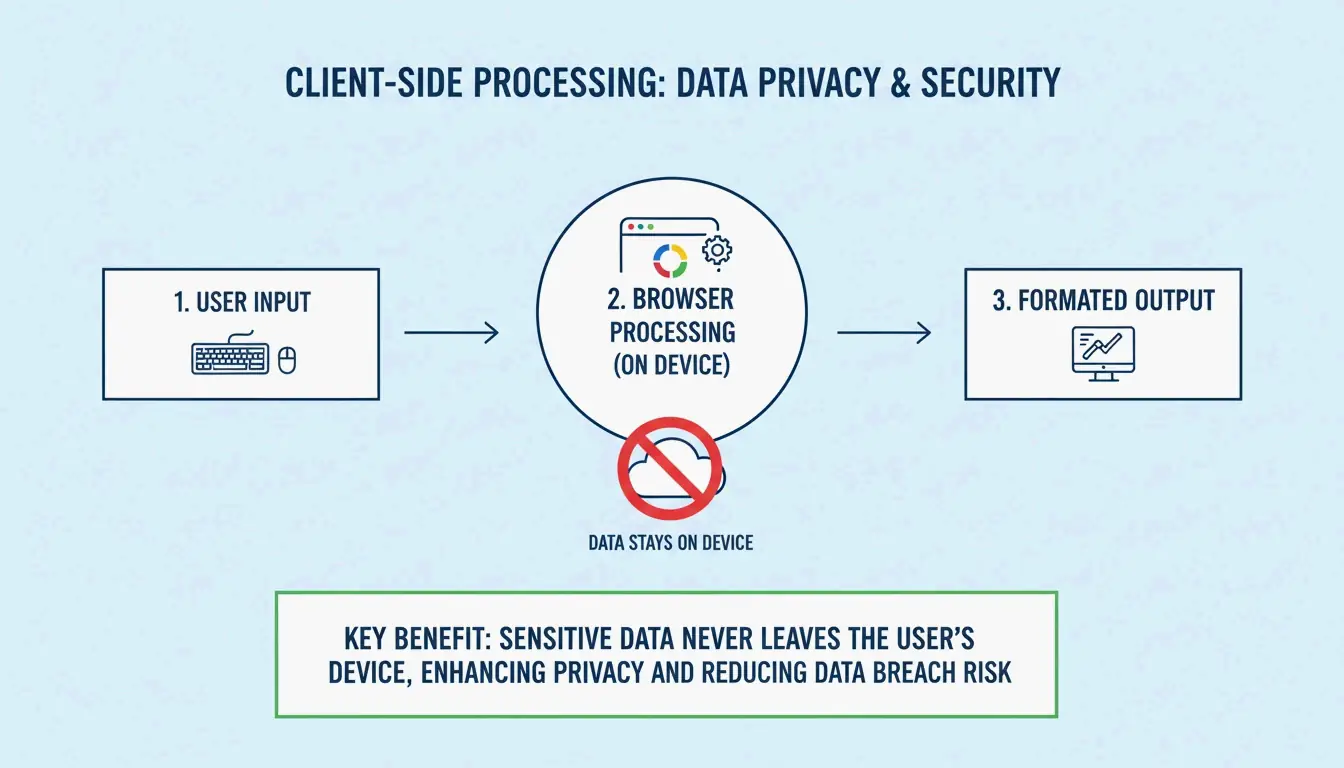
Cómo verificarlo: Abre la pestaña “Red” de tu navegador antes de pegar XML en un formateador. Si no ves solicitudes salientes durante el formateo, la herramienta es del lado del cliente. Si ves solicitudes POST, tus datos están saliendo de tu máquina.
Casos de uso reales
Validación de sitemap SEO
Los motores de búsqueda como Google requieren sitemaps bien formados para indexar tu sitio. Un formateador ayuda a los webmasters a validar estos archivos antes del despliegue.
<!-- Before formatting: impossible to spot errors -->
<?xml version="1.0"?><urlset xmlns="http://www.sitemaps.org/schemas/sitemap/0.9"><url><loc>https://example.com/</loc><lastmod>2026-05-01</lastmod></url><url><loc>https://example.com/about</loc><lastmod>2026-05-01</lastmod></url></urlset>
Depuración de SOAP API
Al depurar respuestas SOAP, la “impresión embellecida” te permite leer rápidamente sobres y cabeceras complejos.
Gestión de cargas útiles empresariales
AWS señala que Amazon SQS tiene un límite de 256 KB para cargas útiles XML. Los formateadores ayudan a los desarrolladores a supervisar el tamaño del archivo manteniendo los datos organizados.
Integración con IDE
Para trabajos pesados, herramientas como IntelliJ IDEA (a partir de abril de 2026) ofrecen ajustes avanzados de “Chop down” o “Wrap if long” que mantienen incluso las etiquetas con muchos datos legibles dentro de los márgenes del editor.
Referencia rápida: hoja de ayuda de formateo XML
| Tarea | Herramienta/Método | Comando o acción |
|---|---|---|
| Impresión embellecida en el navegador | Formateador en línea | Pega el XML, selecciona sangría de 2 o 4 espacios |
| Formateo por CLI | xmllint |
xmllint --format input.xml > output.xml |
| Python | lxml o xml.dom.minidom |
xml.dom.minidom.parseString(xml).toprettyxml() |
| Node.js | Paquete npm xml-formatter |
npx xml-formatter input.xml |
| IDE | IntelliJ / VS Code | Acción integrada “Reformat Code” |
Conclusión
Un formateador XML fiable es la forma más rápida de convertir datos comprimidos e ilegibles en un formato limpio y depurable que cumple con los estándares W3C. Ya sea que estés auditando sitemaps SEO o solucionando problemas de APIs SOAP empresariales, ver las estructuras anidadas a través de una sangría adecuada es esencial para el trabajo de desarrollo moderno.
Elige un formateador con sangría de 2 o 4 espacios y privacidad del lado del cliente garantizada para mantener seguros tus registros de API y credenciales. Para la mejor experiencia de desarrollo, combina el formateo rápido basado en el navegador con herramientas CLI para la automatización.
Preguntas frecuentes
¿Por qué mi XML no se formatea correctamente?
La razón más común es que el XML no está “bien formado”. Comprueba si faltan etiquetas de cierre, discrepancias de mayúsculas y minúsculas (por ejemplo, <Data> frente a </data>) o atributos sin comillas. Asegúrate también de que los caracteres especiales como & estén correctamente escapados, ya que estas infracciones impiden que el analizador construya la estructura de árbol.
¿Cuál es la diferencia entre XML bien formado y válido?
El XML “bien formado” sigue reglas generales de sintaxis: elemento raíz único, etiquetas correctamente anidadas, atributos entre comillas. El XML “válido” además se adhiere a un esquema específico (DTD o XSD) que define las etiquetas y los datos permitidos. La mayoría de los formateadores se centran en la buena formación; la validación requiere herramientas con capacidad de esquema.
¿Es seguro pegar datos XML confidenciales en formateadores en línea?
Solo si la herramienta usa procesamiento del lado del cliente: el formateo ocurre en la memoria de tu navegador y no se carga en ningún servidor. Verifica siempre la política de privacidad de la herramienta. Para datos empresariales de alta seguridad, usa IDE locales o herramientas CLI sin conexión verificadas para eliminar todos los riesgos de transmisión.
¿Puedo formatear archivos XML grandes o imágenes SVG?
Sí, la mayoría de los formateadores modernos manejan SVG (que está basado en XML) y archivos de hasta varios megabytes. Los conjuntos de datos extremadamente grandes pueden causar lentitud en el navegador. Para archivos que superan unos pocos megabytes, los IDE profesionales o las herramientas CLI como xmllint son más eficientes que los formateadores basados en navegador.